Mermaid Gantt Chart: Syntax, Examples & Templates
Open gantt chart in the editor


A Gantt chart lays tasks out on a calendar so you can see durations, dependencies, and deadlines at a glance. In Mermaid it is plain text, which makes it the easiest way to keep a project plan in version control next to the code it plans.
Basic syntax
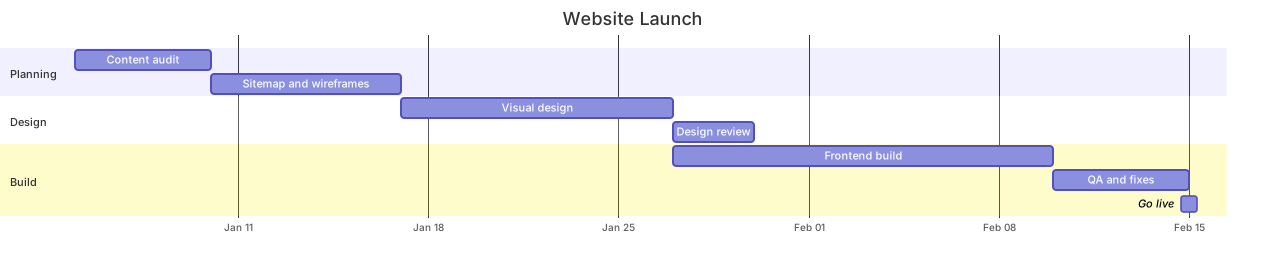
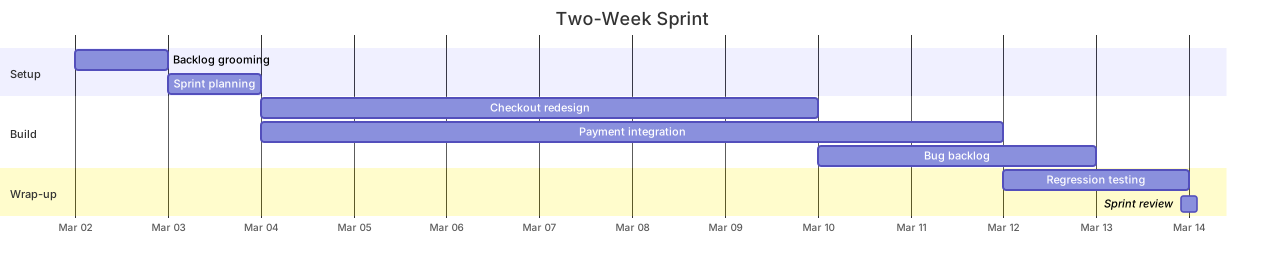
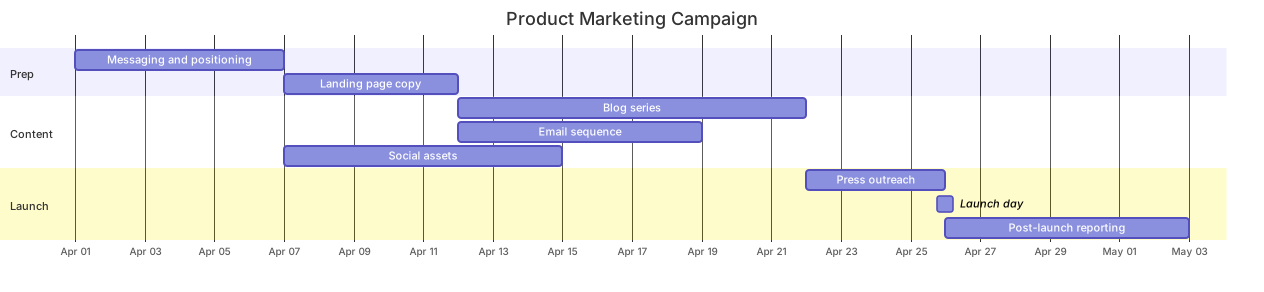
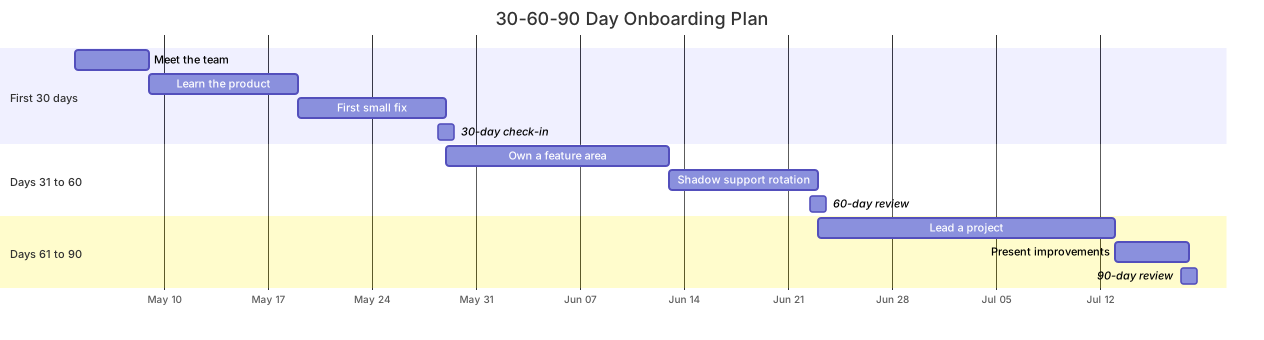
The gantt declaration is followed by a title, then two format lines that control dates: dateFormat YYYY-MM-DD defines how you write dates in the task lines, and axisFormat %b %d defines how the axis labels render (this is strftime-style, so %b %d becomes “Mar 02”). Tasks are grouped into section blocks. Each task line is Name :id, start, duration — for example QA regression :a2, after a1, 6d means the task starts after task a1 finishes and lasts six days. The ids (a1, b1) are how tasks reference each other.
Task syntax
Three ways to set a start date cover every plan: an explicit date (2026-03-02), after someId for dependency-driven scheduling, and a milestone for moments with zero duration. Durations accept d for days, h for hours, and w for weeks. A milestone is a task with the milestone keyword and a 0d duration — it renders as a diamond and is the right way to mark a launch, a deadline, or a review. Give every task an id even if nothing depends on it yet; the day you insert a dependency you will be glad the ids are already there.
Common gotchas
The two date formats are independent and both required: change dateFormat to match how you write dates, but leave axisFormat alone unless you dislike the axis labels. after refers to a task id, not a task name — pointing at a name is a silent failure that leaves the task pinned to the chart start. Durations are calendar-based, so a “7d” task spans weekends; pad estimates accordingly if your team does not work weekends. And keep ids unique across all sections, not just within one, because duplicate ids make after references ambiguous.
Tips for mobile editing
Short section names and short task names keep lines tappable and the rendered chart legible on a narrow screen. Prefer after chains over absolute dates for anything that might slip — when a date moves, you edit one line instead of ten. Put milestones at the moments someone will ask “are we on track?”, not at every task boundary. The cheatsheet lists the duration and date-format tokens.
For plans without precise dates, a timeline is lighter weight; for choosing what to schedule in the first place, a quadrant chart does the prioritization a Gantt cannot.
Gantt Chart templates
Every template opens in the editor with the code pre-filled — edit it on your phone or desktop.